
How to Connect Clockwork's MCP Server
The Clockwork Model Context Protocol (MCP) works with AI assistant applications that support custom MCP servers. Once you've selected an application like Claude or ChatGPT. Now it's time to connect!
Connect in 3 easy steps
- Open your assistant's connector settings. Find where your AI assistant adds a custom or remote MCP connector. Every app places this differently, so if you can't find it, ask the assistant: "How do I add a custom MCP server?"
- Add the Clockwork connector (typically found in Settings). Create a connector and give it these two values:
Name: Clockwork
URL: https://mcp.clockworkrecruiting.com
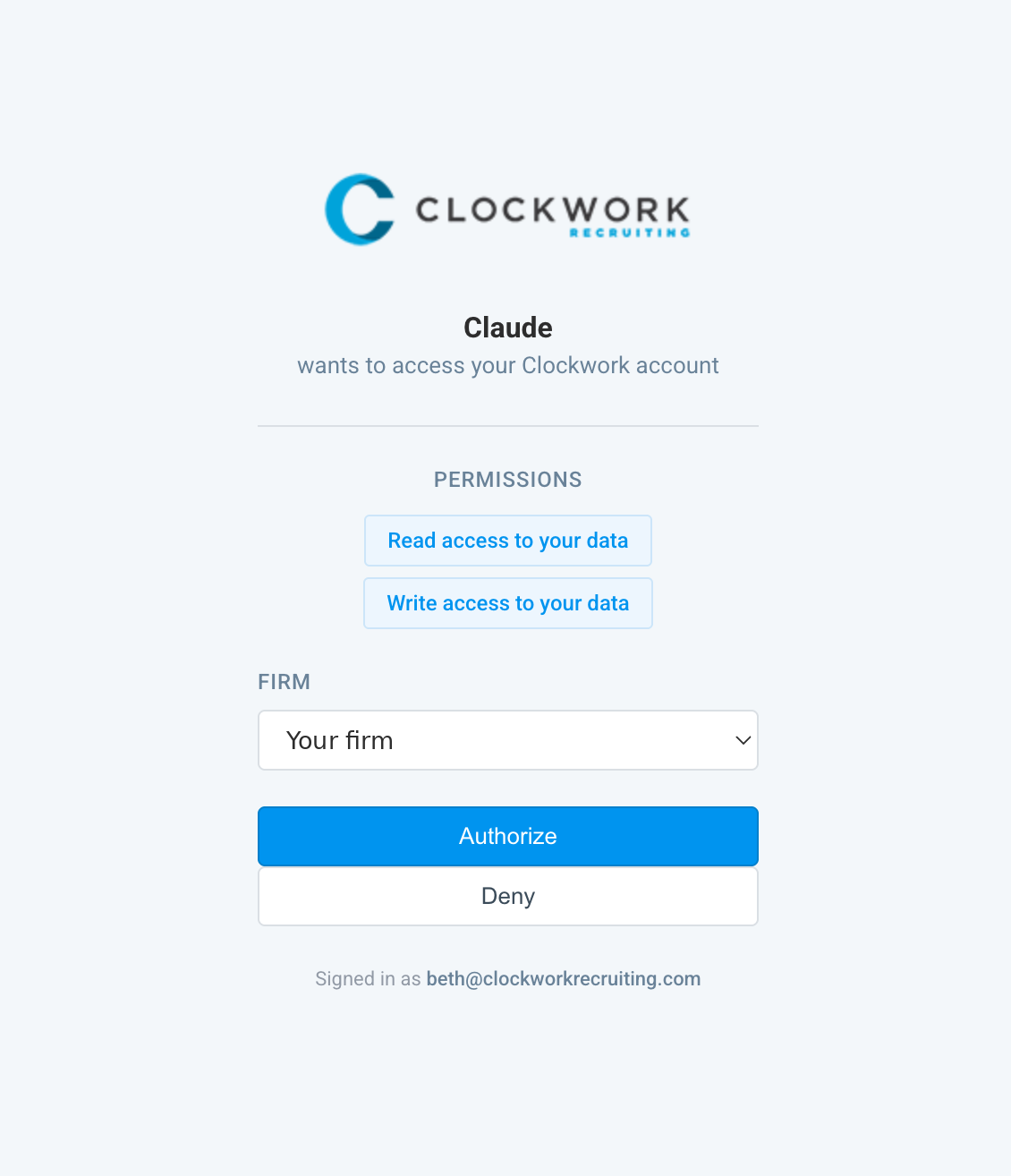
- Authenticate and authorize. You'll be asked to sign in to Clockwork. Pick your firm, review the access requested, and click Authorize. This is what that screen looks like:
To check it worked, ask your assistant to find a person or project you already know.
Try it
- "Find candidates for the [role] search with [criteria]."
- "Summarize the pipeline for [project]."
- "Brief me on [person] before my call."
- "Add a note to [candidate] that we spoke today."
What it can read and write
When you connect, Clockwork asks for two kinds of access.
Read access (view your data)
- Find and open people, companies, projects, and candidacies
- Pull teams, fees, compensation, notes, and status history
- Brief yourself on a person or a pipeline
- Run a conflict check
Write access (add notes only)
- Add a note to a person, project, or candidacy
- It can't edit or delete your records
Either way, the assistant only reaches what your Clockwork permissions already allow, and you can review anything it proposes before it runs.
If you get stuck
We're glad to help with anything on the Clockwork side: connecting, authenticating, or reaching your data through the server. Reach us at [support contact].
We can't troubleshoot the AI apps themselves. They update often, so the best source for where a setting lives is that app's own help, or the assistant itself.