Chrome Extension Import Method
Please Note: Importing a new profile through the Chrome extension uses 2 credits. This applies whether you use Manual or Automated lookup. If the person already exists in your Clockwork database, the extension will identify the existing record rather than creating a new import.
Clockwork's Chrome extension here now offers two ways to look up a profile: Manual and Automated.
Both use the data providers and import the same way once a profile is found; the only difference is how the extension locates the LinkedIn profile.
Choosing Your Import Method
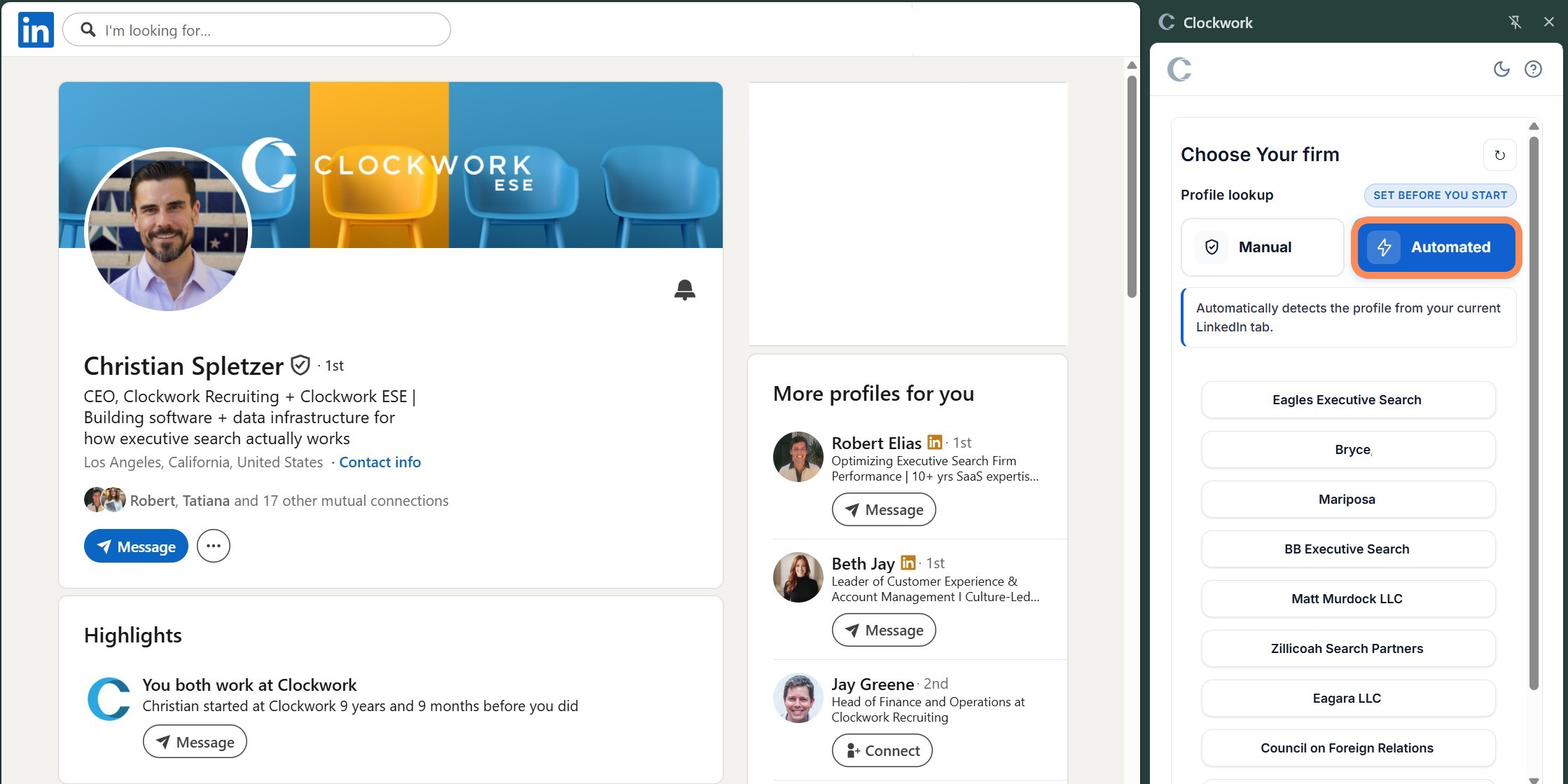
When you click the Clockwork icon and the panel opens. Select Manual or Automated at this stage it sets your default import style for the potential candidates you import.
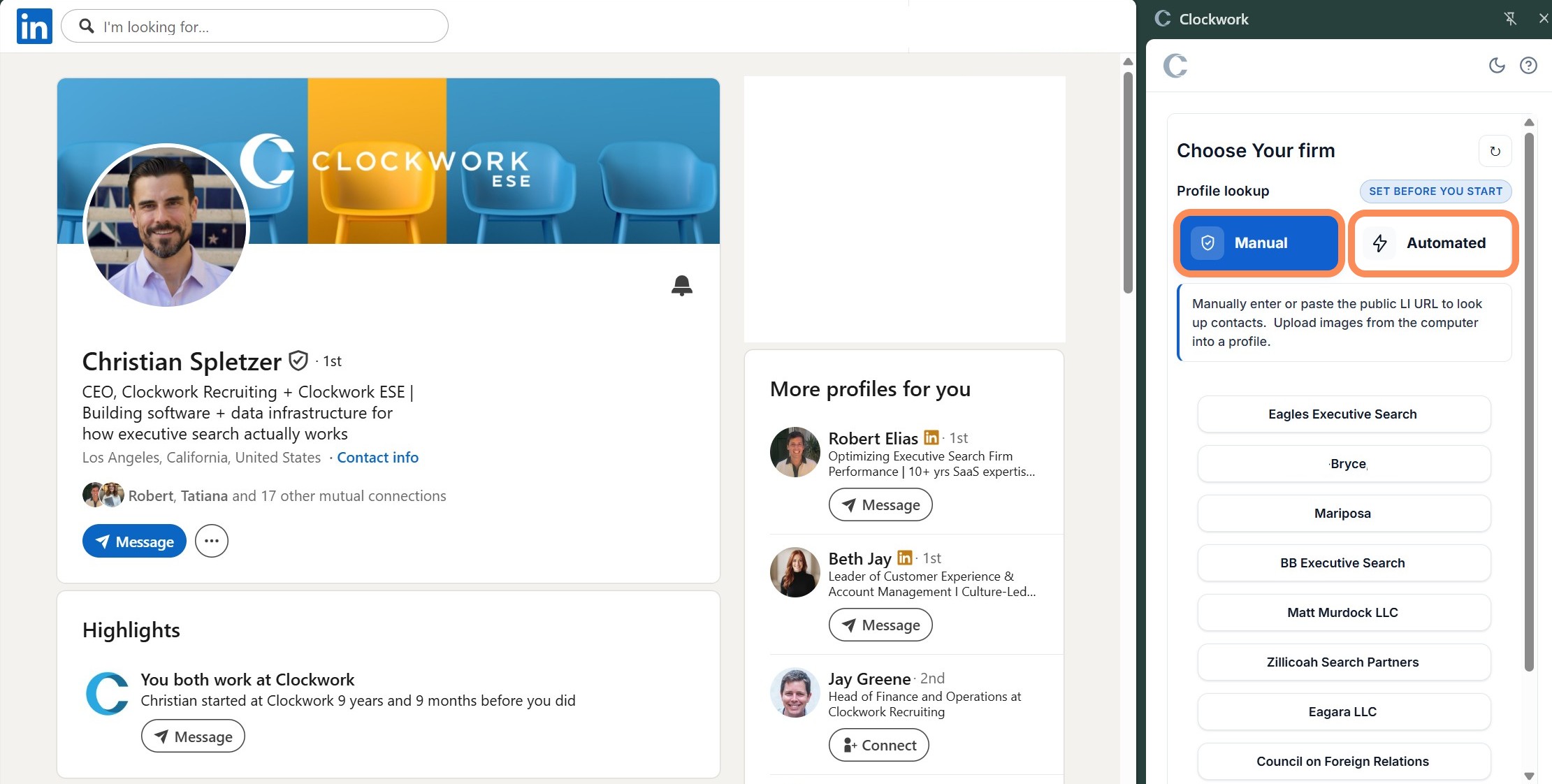
Manual
With Manual and your Firm Name selected, paste a public LinkedIn URL into the panel to import a profile. The extension checks the URL against your database to see whether the person has already been added. If they haven't, they will be imported into your Clockwork database.
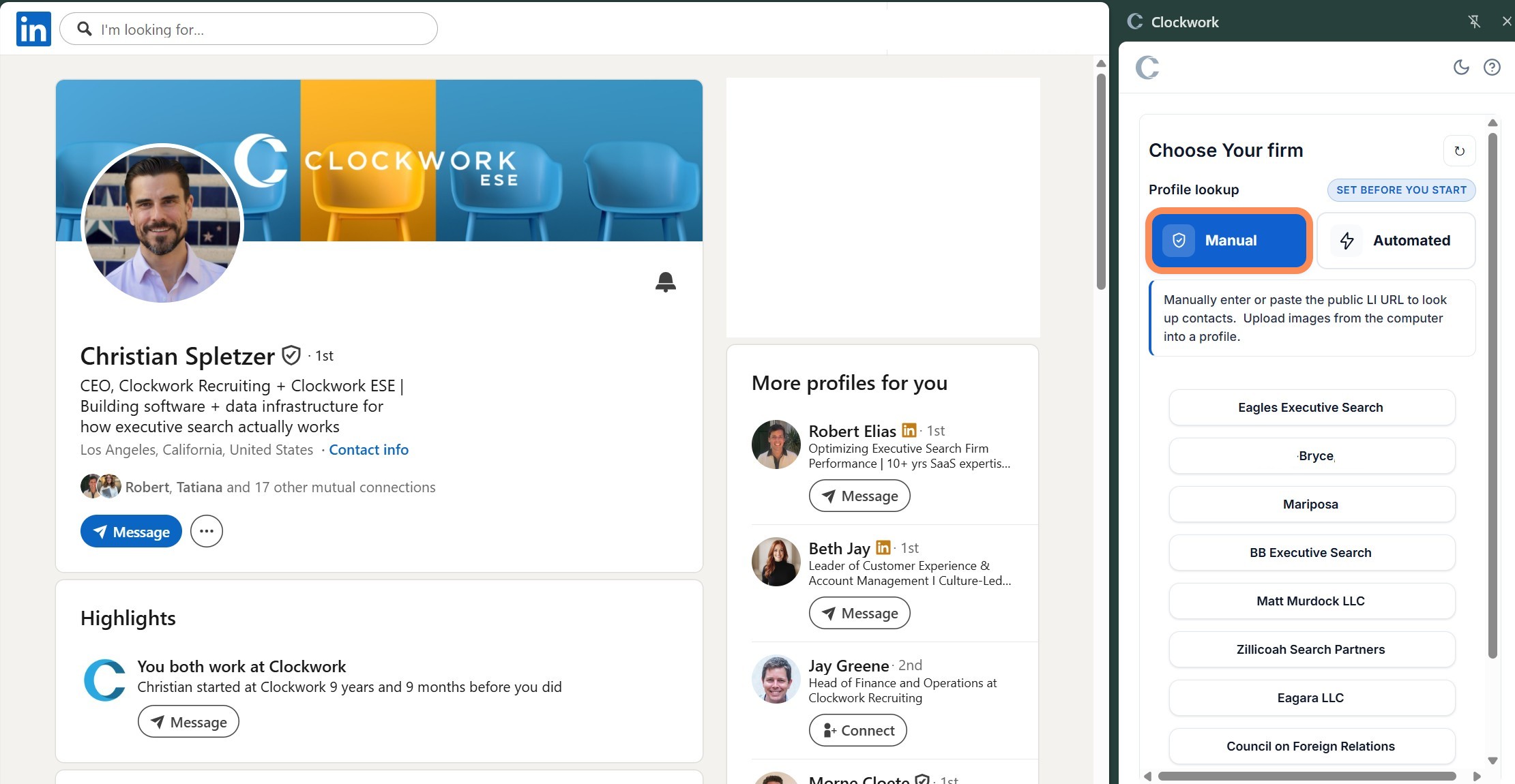
 To import a new profile, click the link icon in the panel and paste in a new public URL.
Automated
Note: Manual and Automated are not different import methods; they are different ways of locating the profile. Both use the same public LinkedIn data providers, follow the same import process, and use 2 credits when importing a new profile.
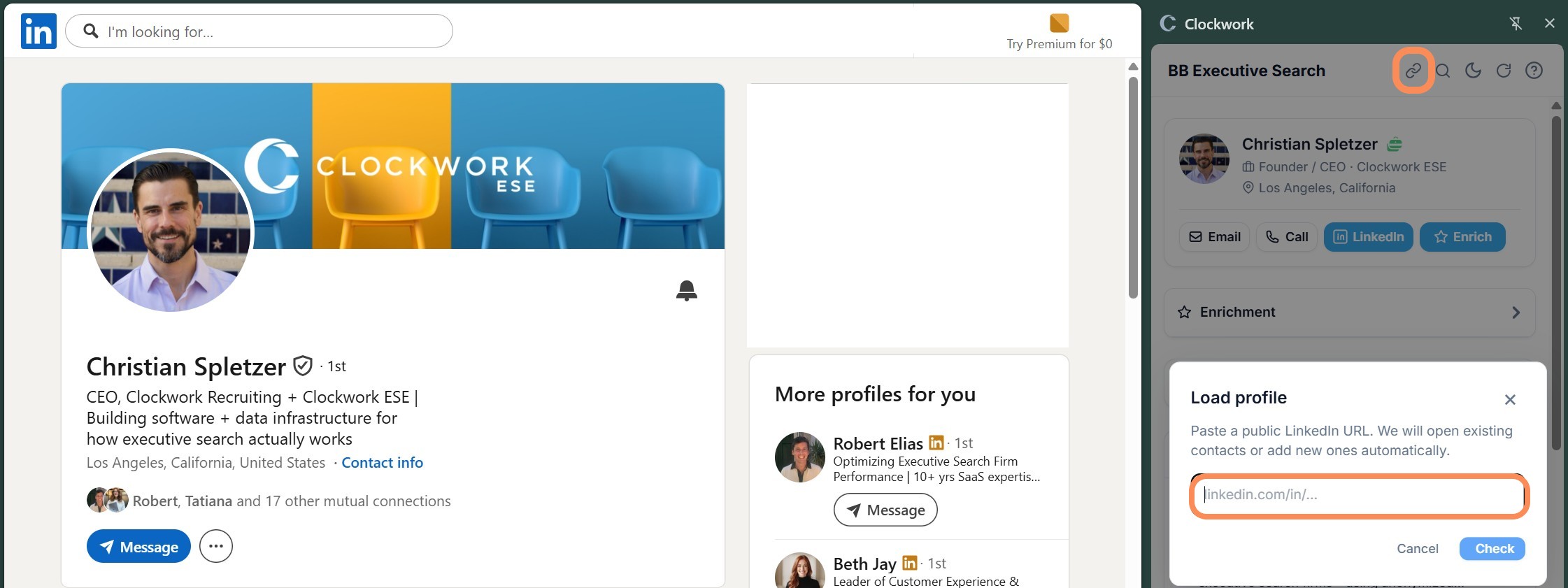
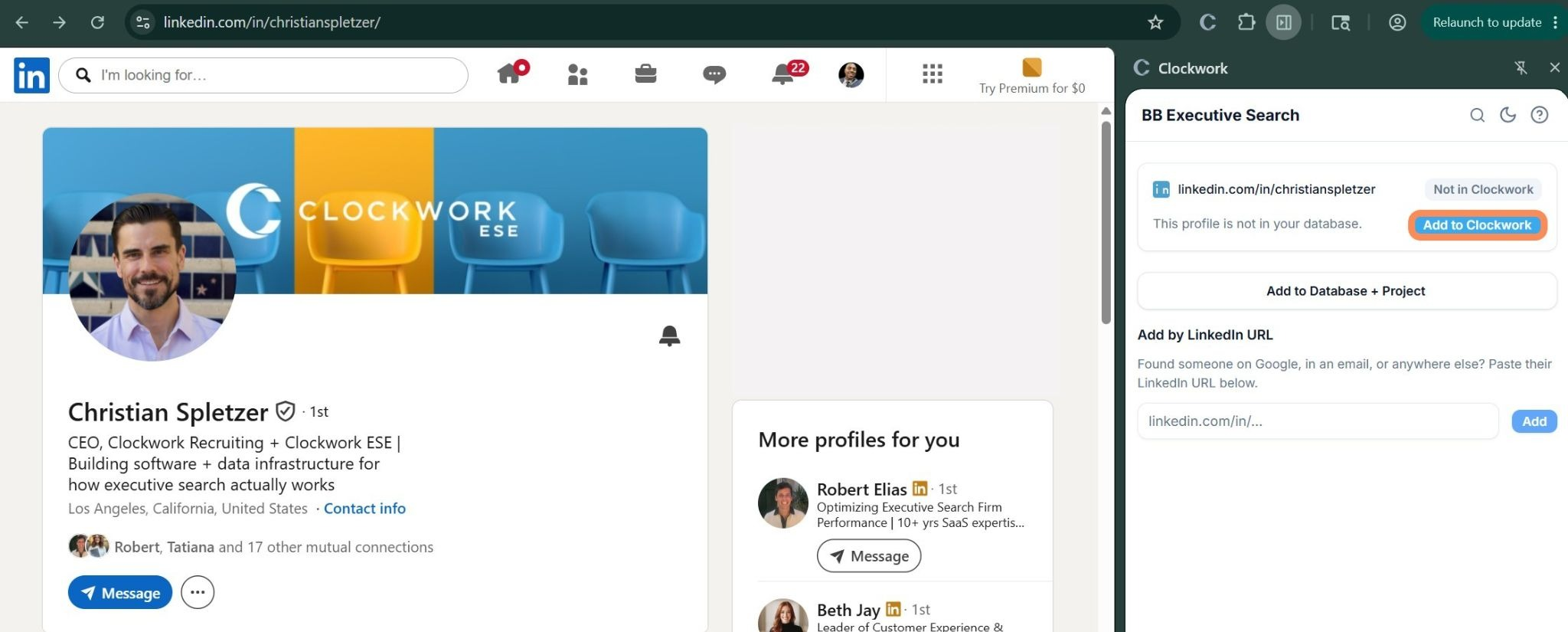
With Automated and your Firm Name selected, the extension detects the profile from the LinkedIn profile you currently have open.
NOTE: Manual and Automated aren't different import methods, they're different ways of finding the profile. Both pull from the same public LinkedIn data providers and both lead to the same import experience.
Switching Between Manual and Automated
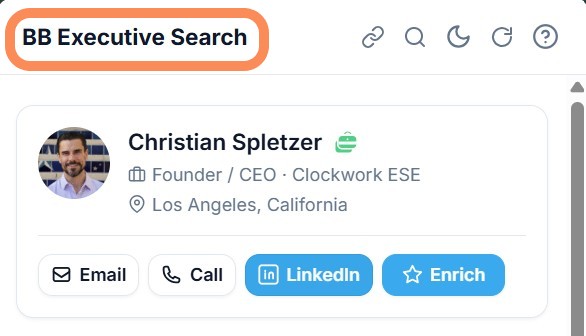
To switch between the two import styles, click your firm name at the top of the panel. This takes you back to the firm and lookup selection screen at any time.