
Clockwork Chrome Extension Outline
The Clockwork Chrome Extension is designed to streamline your sourcing and save you valuable time on every executive search project. Our enhanced Chrome extension seamlessly integrates with your Clockwork database to help you build your candidate pipeline more efficiently than ever.
The Chrome extension currently pulls information through Third-Party Data providers. Data Providers can only provide what LinkedIn makes publicly accessible. That data set typically includes name, current title, employer, location, employment history, education, and skills.
The link here dives deeper into our data Providers capabilities
NOTE: You will need to be signed into Google Chrome with your Clockwork account to download the Chrome extension.
How To Get Started
Navigate to the Chrome Web Store via the following link to add the extension to your Chrome browser. Click "Add to Chrome".

You will see a popup asking you to confirm permissions. Click on "Add extension".

Click on the Manage Extensions (puzzle piece) icon to pin the Clockwork extension to your browser.

Parsing Profiles
With the Chrome extension pinned to your browser, navigate to a LinkedIn profile you wish to import. Clicking the pinned Clockwork icon opens a side panel that extends into the page.
Choosing Your Import Method
Select Manual or Automated at this stage it sets your default import style for the potential candidates you import.
Please Note: Importing a new profile into Clockwork through the Chrome extension uses 2 credits. This applies to both Manual and Automated imports. Manual and Automated are simply different ways of locating the LinkedIn profile; the resulting import is the same.
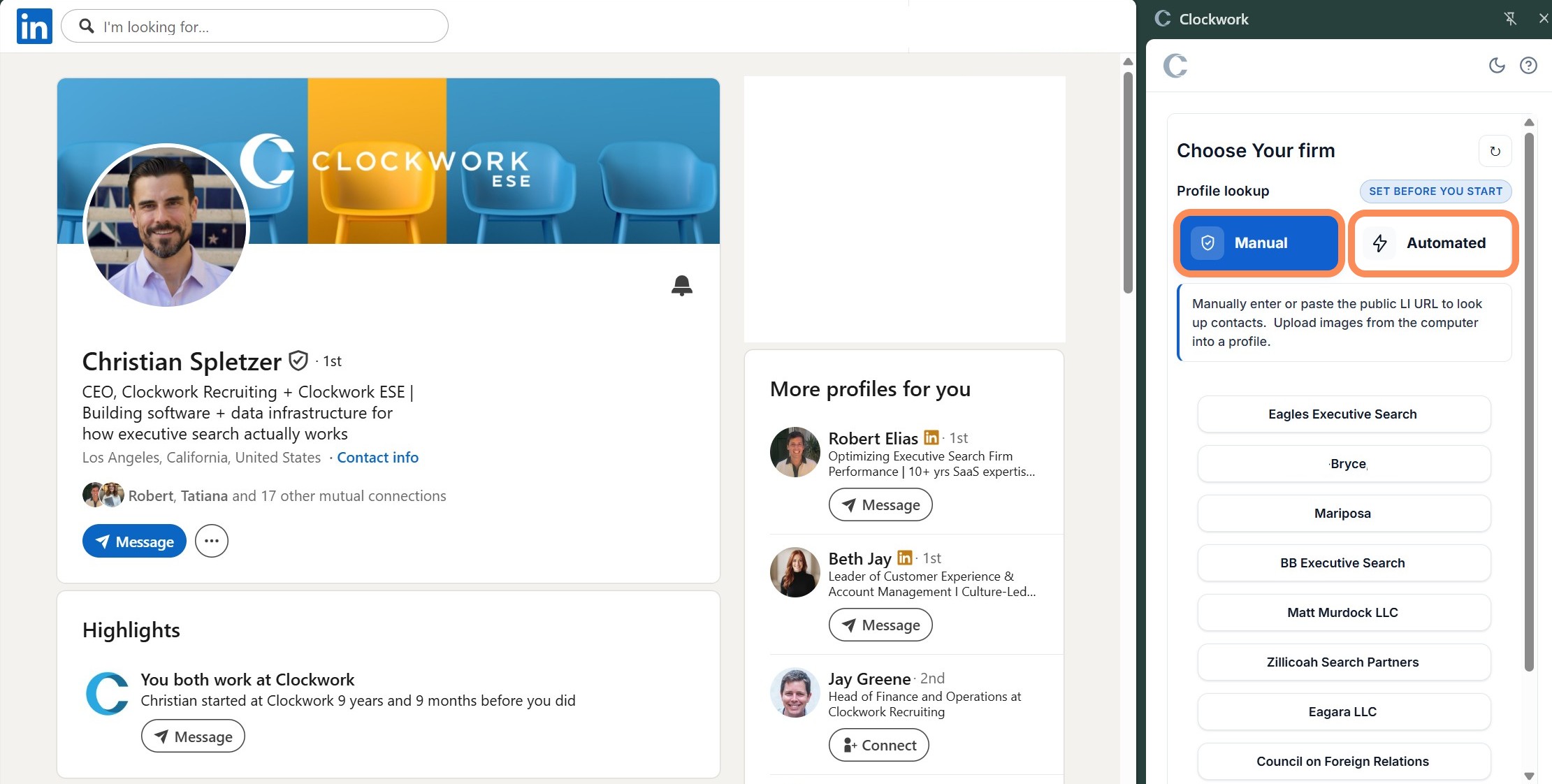
Manual
With Manual and your Firm Name selected, paste a public LinkedIn URL into the panel to import a profile. The extension checks the URL against your database to see whether the person has already been added. If they haven't, they can be imported into your Clockwork database. Importing a new profile uses 2 credits.
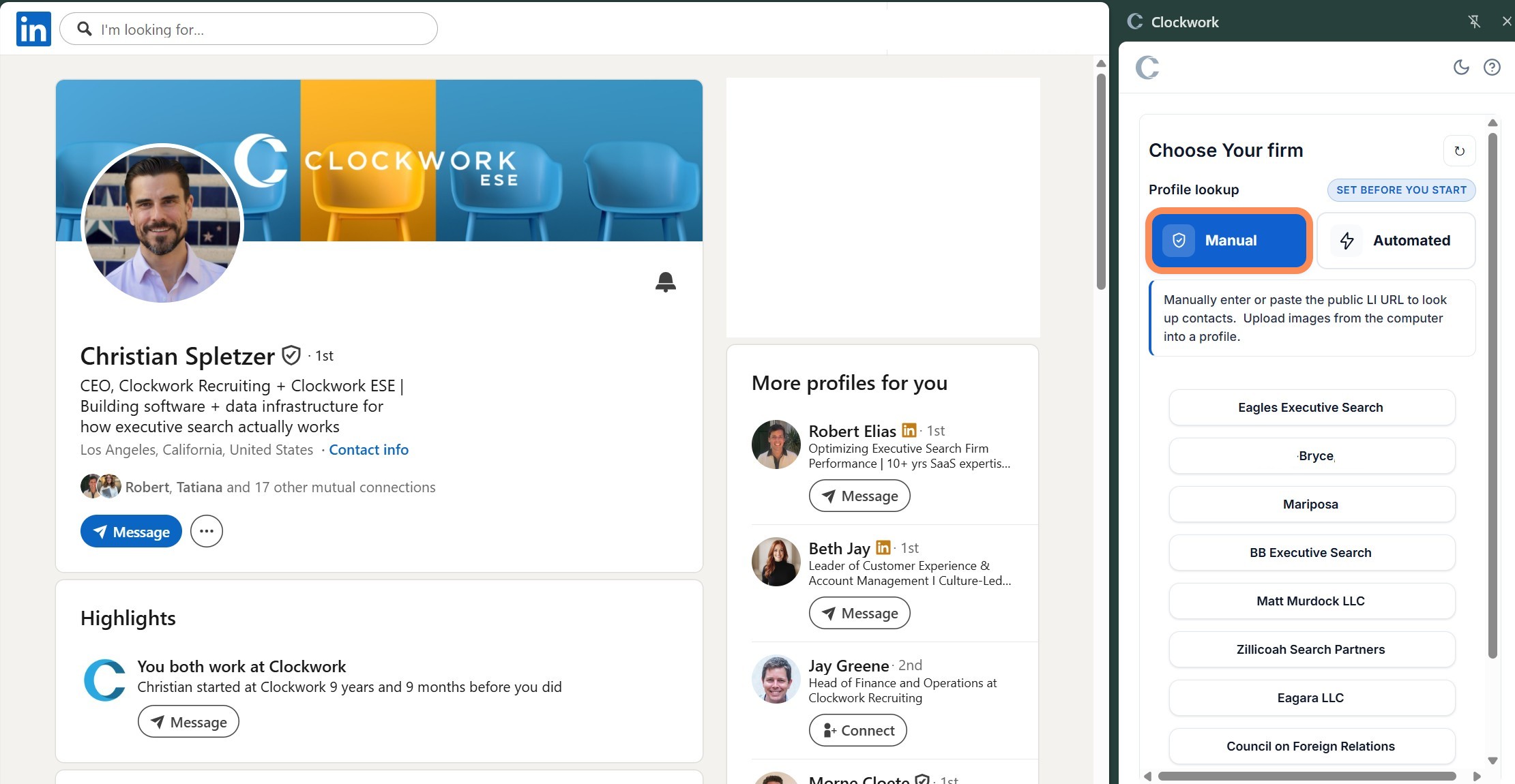
 To import a new profile, click the link icon in the panel and paste in a new public URL.
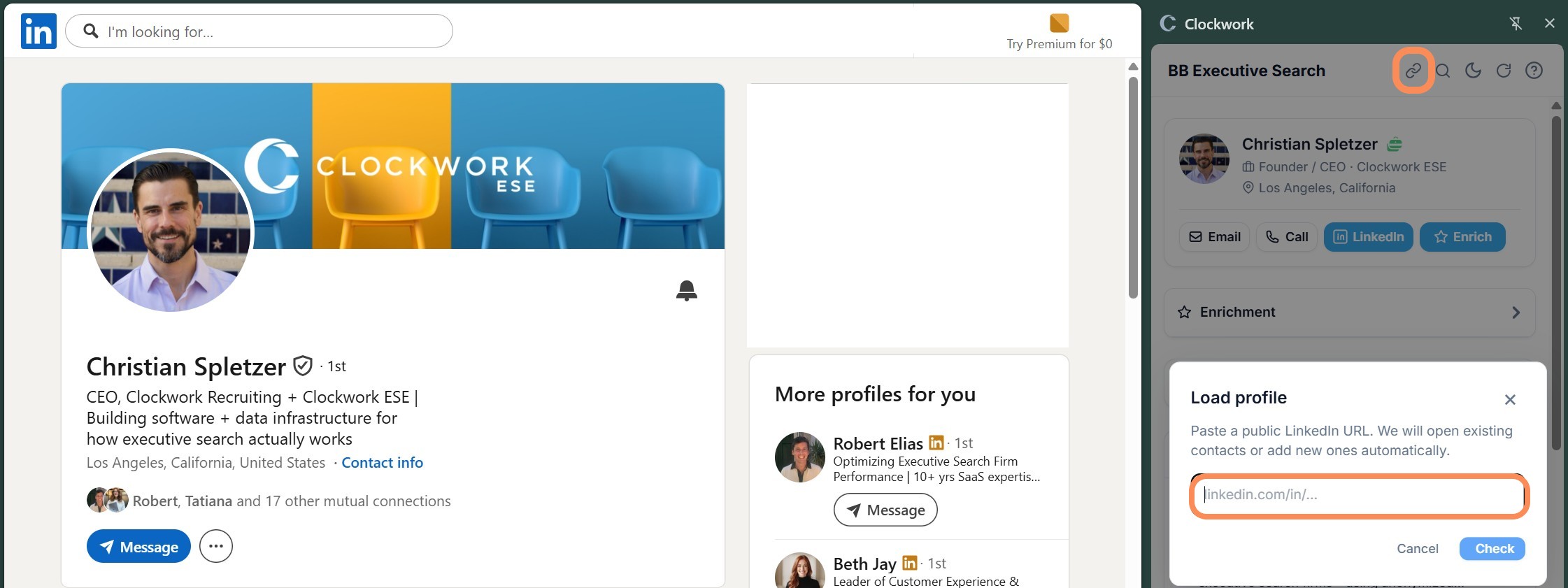
Automated
With Automated and your Firm Name selected, the extension detects the profile from the LinkedIn profile you currently have open.
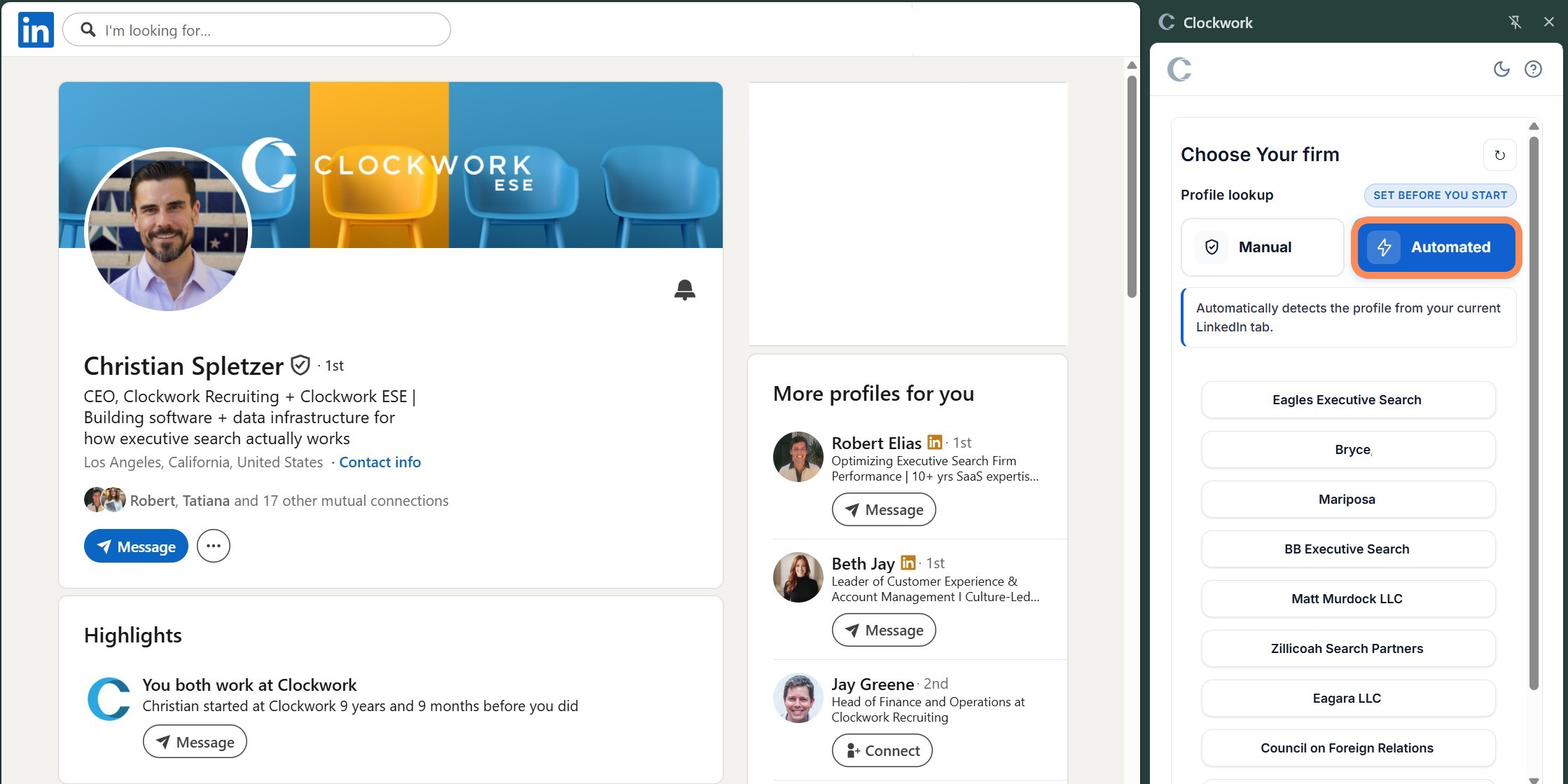
You have three options for importing profiles:
Add to Clockwork
Choose to add the person directly to your People database.

Add to Database + Project
Select "Add to Database + Project" to simultaneously import the candidate and associate them with a specific project. From here you can:
- Select the desired project
- Choose a color category
- Set a candidate status
Click "Add Candidate" to complete the import.


Add by LinkedIn URL
Enter in the URL and click “Add” to import the candidate into your People database.

Enrichment
After importing, you can see which fields were enriched with the third-party data provider. The enrichment history section shows when the candidate was added to Clockwork and the last time they were enriched..
Deep Scan
If any fields were not returned during the initial import, use Deep Scan to run a comprehensive enrichment across multiple data providers. Deep Scan pulls any additional public information available.

Re-enriching Stale Records
If a candidate has not been enriched in some time, a notice will appear in the panel. Click to re-enrich the profile; this will also be recorded in the enrichment history.
Candidate Details
The Details section displays any gathered contact information, LinkedIn URL, and location.
Pro Tip: If you have a closer connection to the candidate, click "Contact Info" on their LinkedIn profile to copy a phone number or email and paste it directly into the panel. Once saved, it syncs to Clockwork.

Work History
The work history section displays the candidate's current and past positions. You can edit existing entries by clicking on the pencil icon or +add a new position directly from the panel.

Projects, Deals, and Notes
Projects
The Projects section shows all projects the candidate is associated with:
- Click the paper icon to add a note relevant to a specific project and select the note type
- Click the pencil icon to edit the candidate’s project details.

Deals
The Deals section shows any deals the candidate is linked to. If they are not yet associated with a deal, you can add them within the Deals card. Once added, the deal status (e.g., won and closed) is displayed. You can also add a note tied to the deal.

Notes
The Notes section allows you to add a note tied to the person, a specific project, or a deal. Select the note type and enter your message; it will sync to Clockwork. To expand the note editor, drag the bottom-right corner to resize it.

Tags
Add tags to the candidate's record directly from the panel. Tags must already exist in the Tags section inside Clockwork.

Additional Features
Parse Resume
At the bottom left of the panel, click Parse Resume to open your file browser and upload the candidate's resume directly to their record.

Go to Clockwork
Click Go to Clockwork to open the candidate's full record inside the Clockwork database.

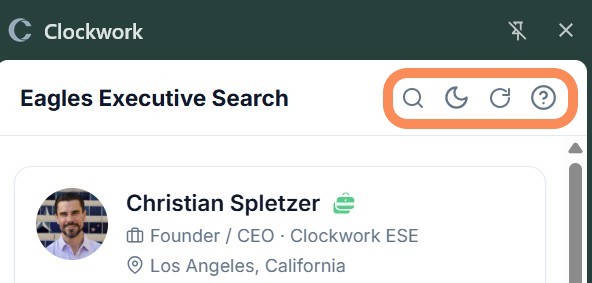
Search
The search feature at the top of the panel allows you to search your contacts by name.
Dark Mode
A dark mode button is available at the top of the panel.
Refresh Profile
Refresh the panel to see new enriched data or import someone new.
Help
A help button is available for quick access to Chrome extension support documentation.
Panel Persistence
The panel will stay open when you navigate to a new LinkedIn profile. If the person already exists in your database, their details will automatically populate in the panel. You can review or add information without reopening the extension.